
Managing orders in WooCommerce allows you to track purchases, update order statuses, and keep customers informed throughout the buying process.
This guide covers the basics in simple steps.
Watch the video below for a step-by-step demonstration of the process.
For PC
For Mobile
Log in and Go to Orders
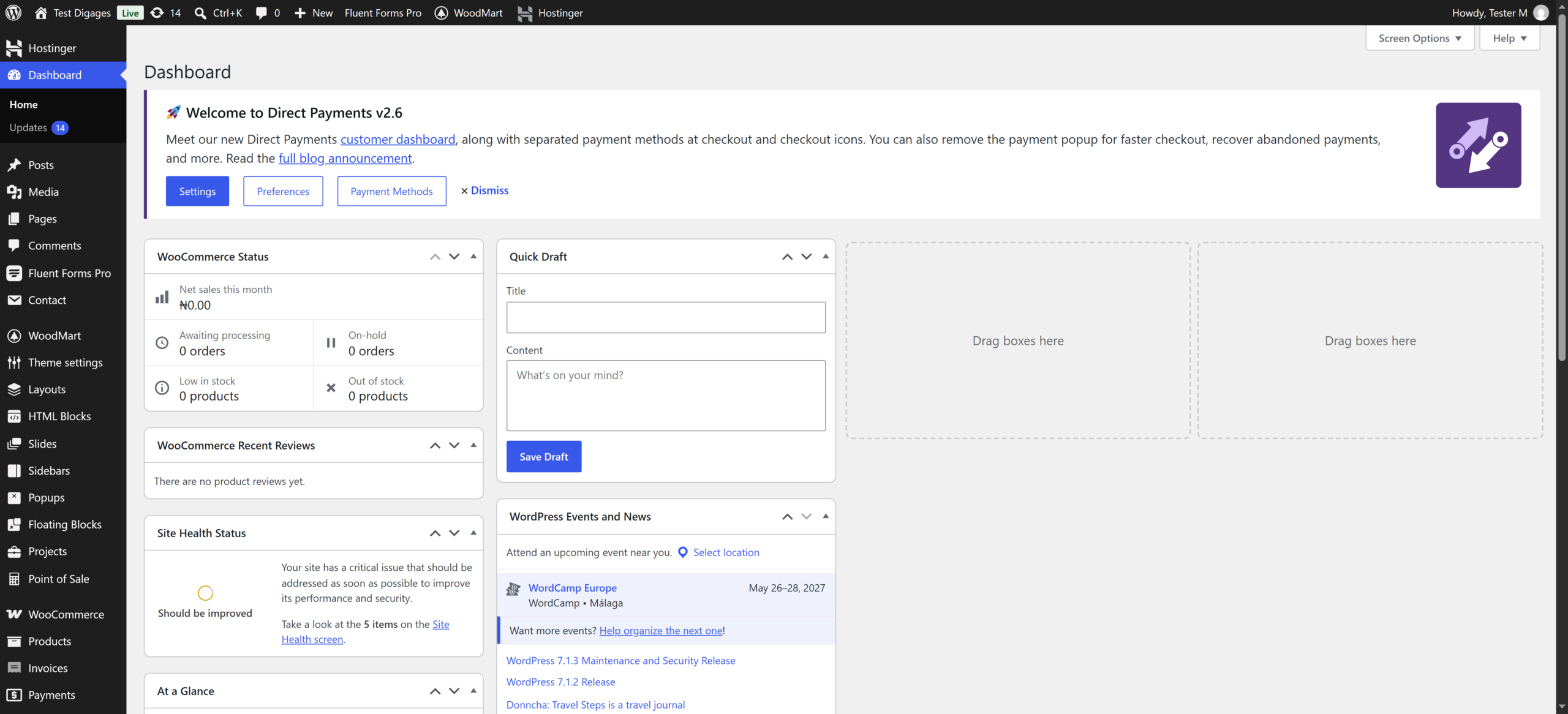
- Open your WordPress login page.
Example: yourwebsite.com/wp-admin - Enter your username and password, then click Log In.
- From the dashboard, navigate to WooCommerce → Orders.
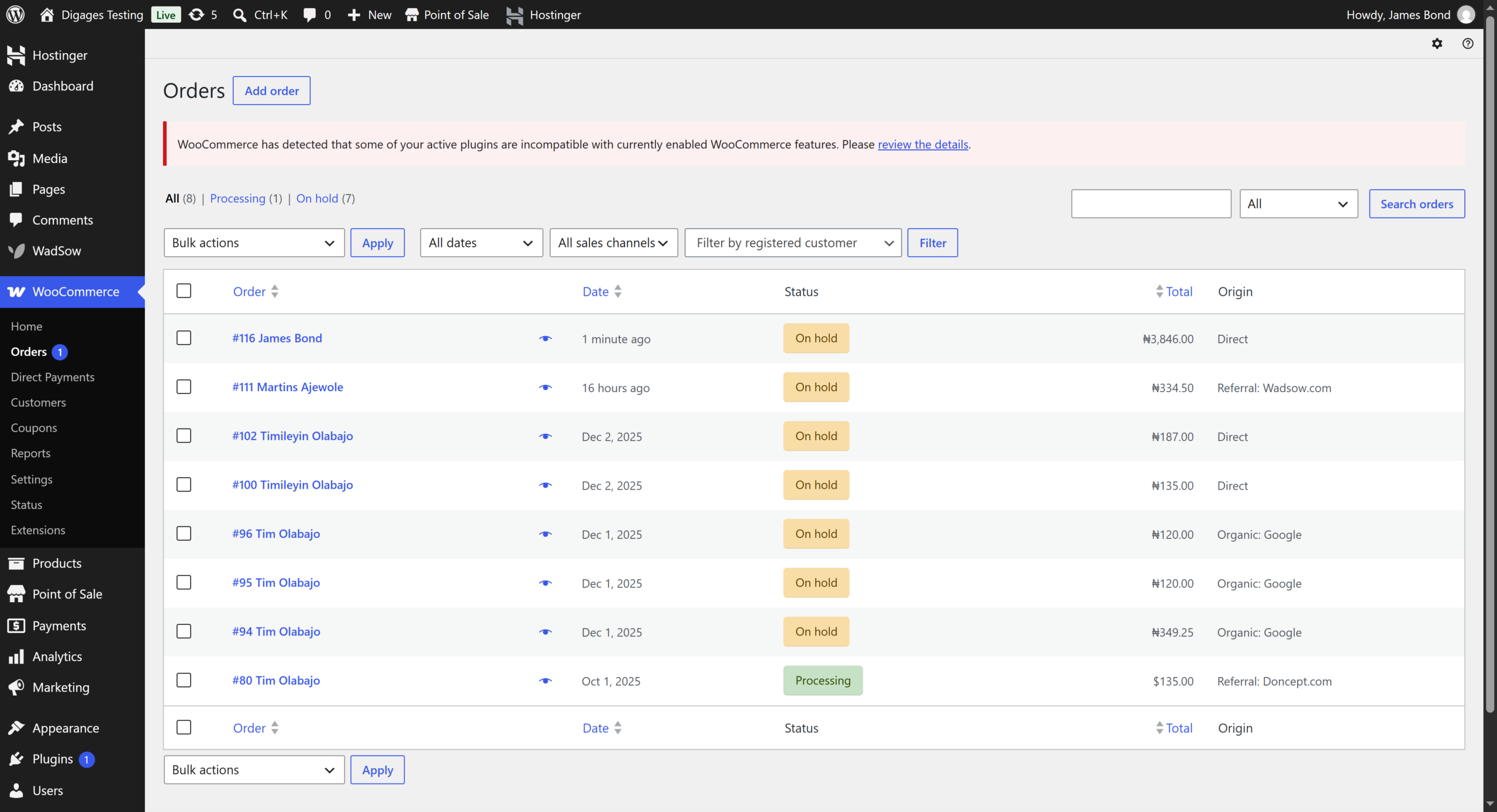
This opens the Orders page, where you can see all customer orders, including their status, total amount, and date.
View and Open an Order
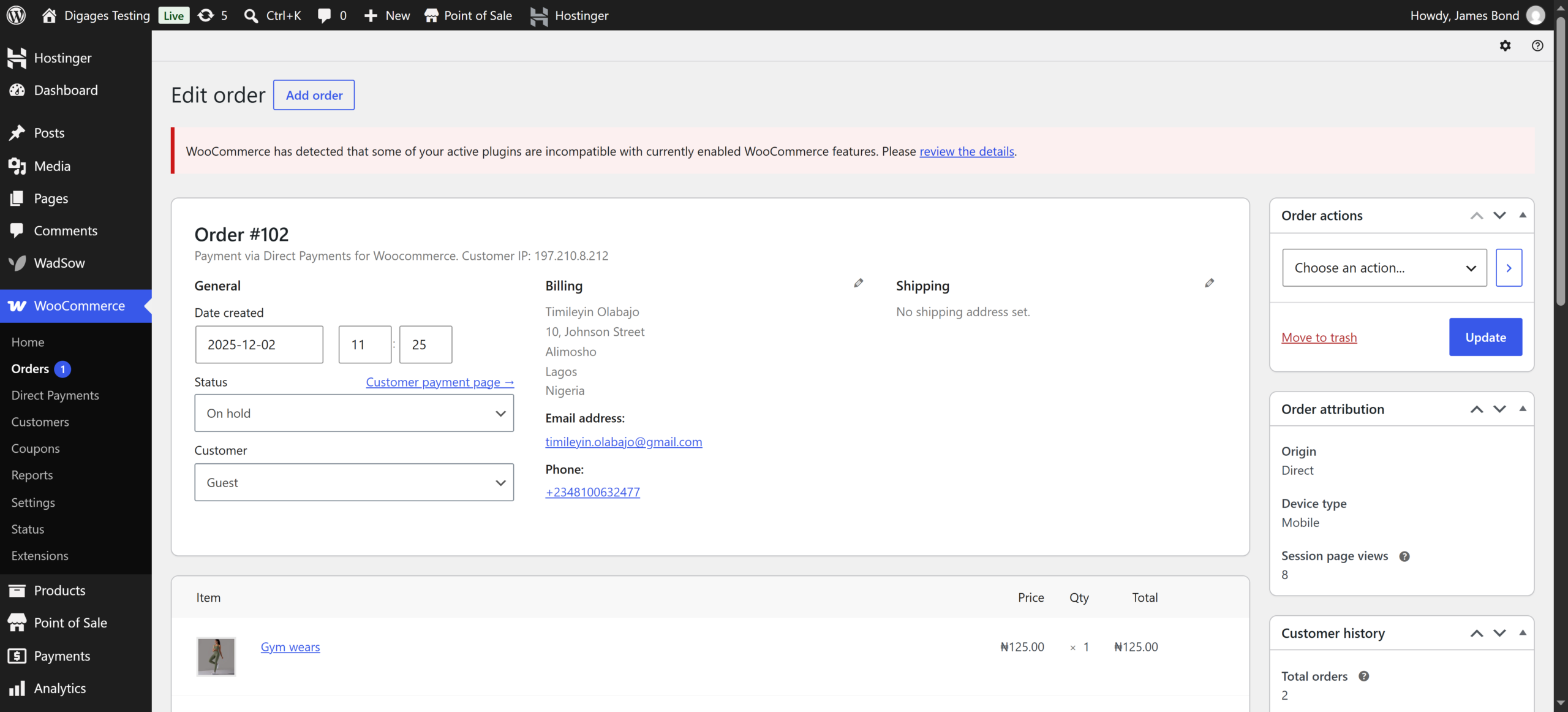
- On the Orders page, locate the order you want to manage.
- Click on the order number or Edit.
You will see full order details, including:
- Customer information
- Billing and shipping details
- Purchased products
- Payment method
- Order notes
This is where you review and manage each order.
Understanding Order Statuses
WooCommerce uses order statuses to track progress. You can update the status based on what stage the order is in.
Common Order Statuses
Pending Payment
- The customer started checkout but did not complete payment.
- No action is usually required unless you want to follow up.
On Hold
- The order is awaiting payment confirmation.
- This is common for manual or offline payment methods.
Processing
- Payment has been received.
- The order is ready for fulfillment or delivery.
Completed
- The order has been fulfilled and delivered successfully.
- No further action is required.
Cancelled
- The order was cancelled before completion.
- This may happen if the customer cancels or payment fails.
How to Update Order Status
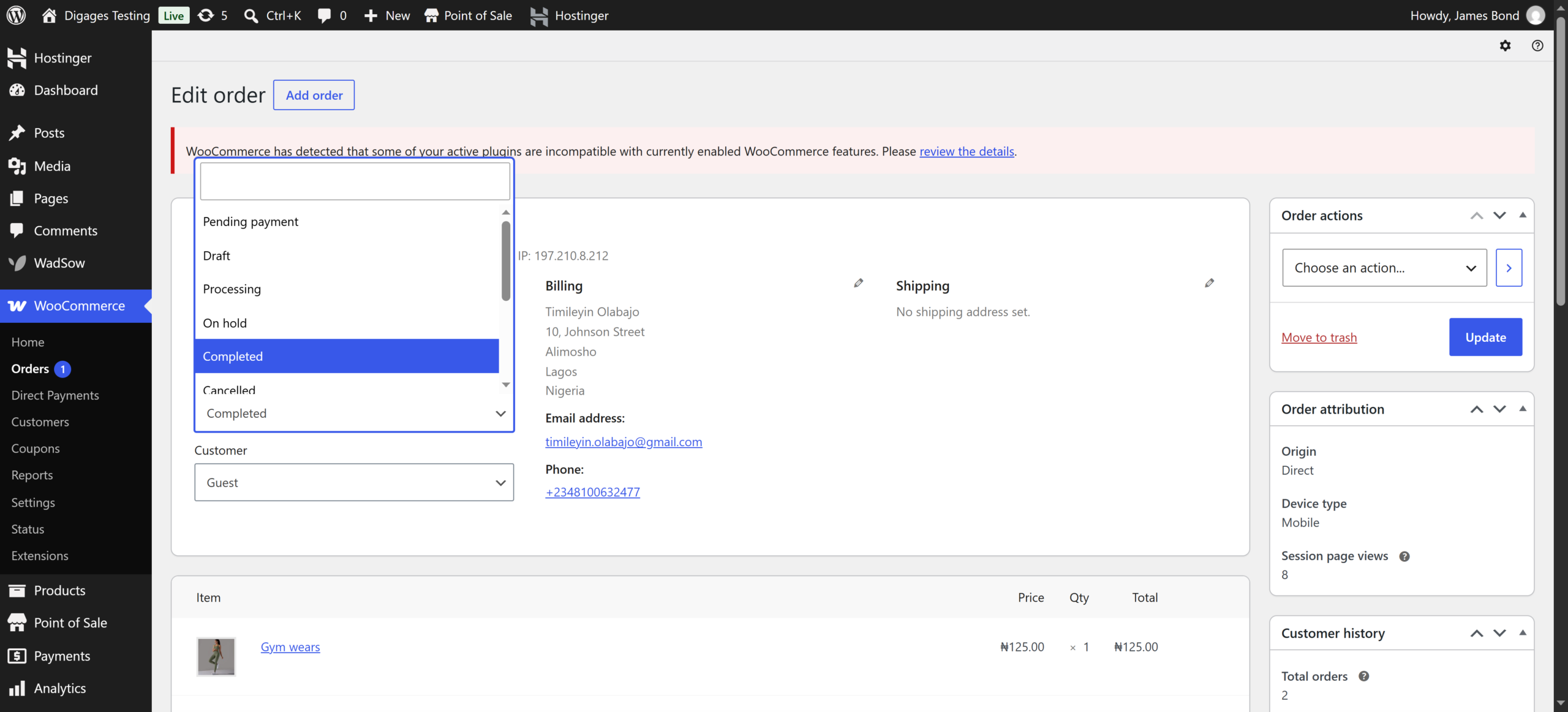
- On the order page, locate the Status dropdown.
- Select the appropriate status.
- Click Update.
The system may automatically notify the customer depending on your email settings.
How to Add Notes
Add notes to track progress or communicate with customers.
Add Order Notes
- Scroll to the Order Notes section.
- Enter your note.
You can choose:
- Private note (visible only to admin)
- Note to customer (sent via email)
- Click Add.
Additional Actions
From the order page, you can also:
- Resend order emails
- View or download invoices (if enabled)
- Track order history
- Confirm payments manually (if applicable)
Practical Tips for Managing Orders
- Check orders regularly to avoid delays
- Update order statuses promptly to keep customers informed
- Use Processing → Completed flow for smooth fulfillment
- Add notes for internal tracking and customer communication
- Monitor Pending Payment orders to identify abandoned checkouts
Managing orders efficiently ensures a smooth customer experience and helps you stay organized as your store grows.