
Selling digital products like eBooks in WooCommerce is straightforward. You can upload the file, set it as downloadable, and allow customers to access it after purchase.
This guide breaks the process into four simple steps.
For PC
For Mobile
Step 1: Log in and Open the Product Editor
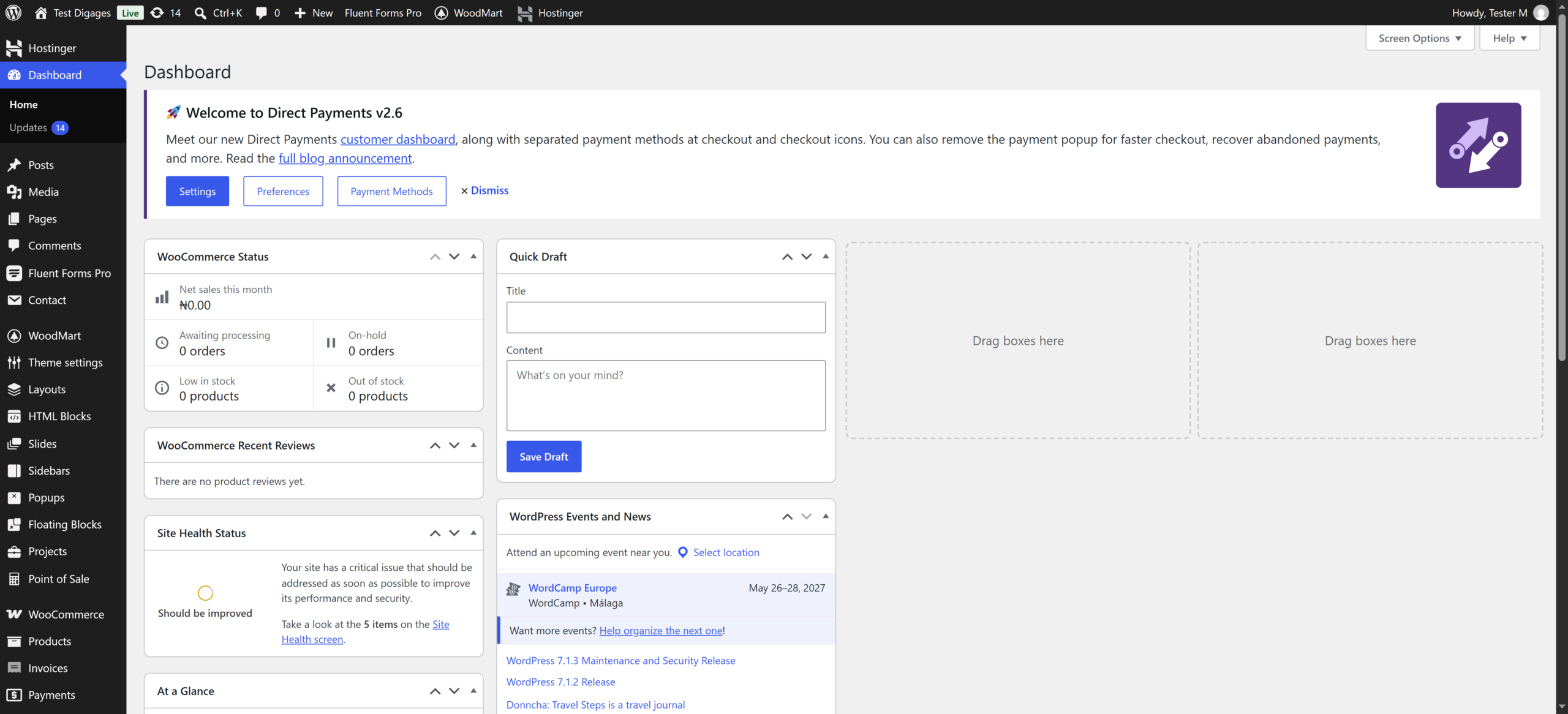
- Go to your WordPress login page.
Example:yourwebsite.com/wp-admin - Enter your username and password, then click Log In.
- From the dashboard, navigate to Products → Add New.
This opens the product editor, where you will create your eBook product.
Step 2: Add Product Name and Description
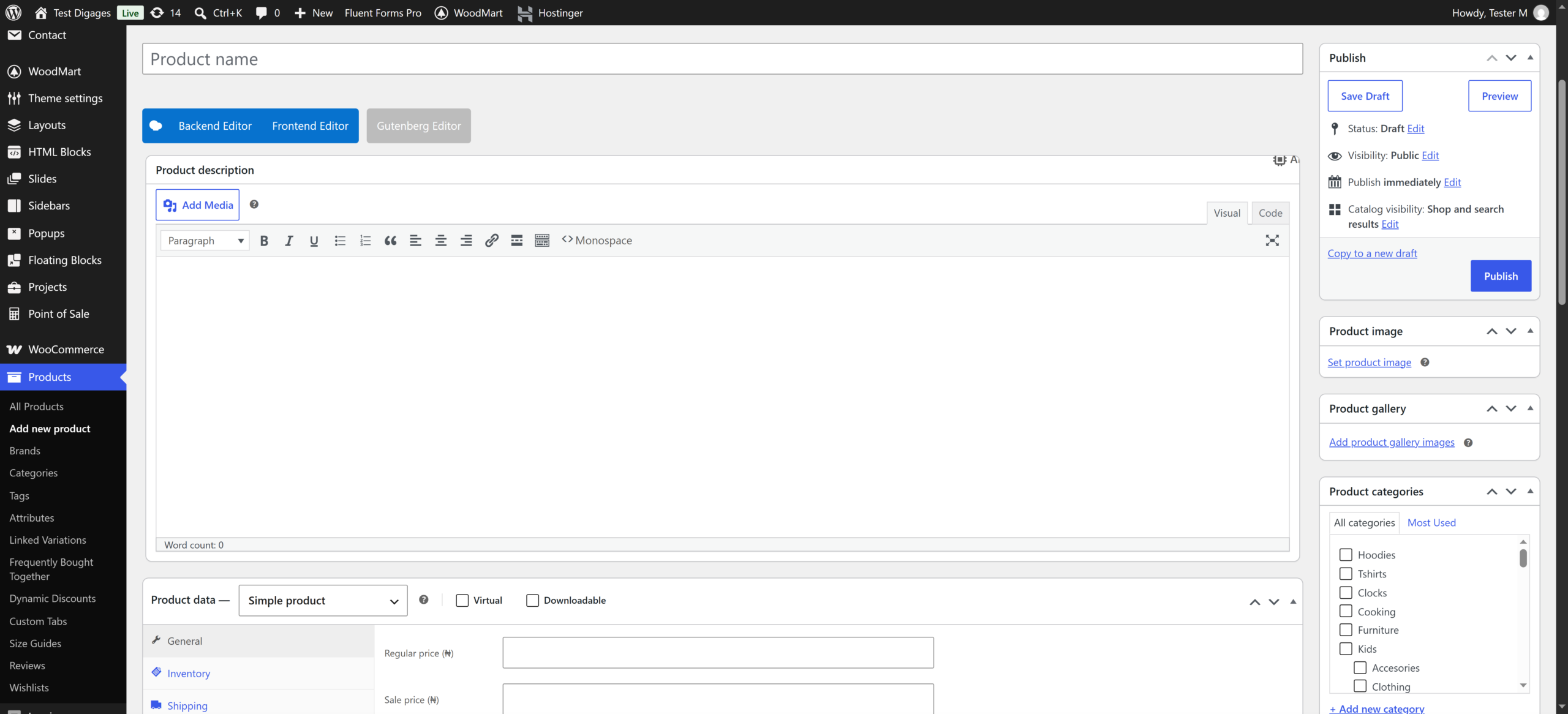
- Enter the product name (e.g., Beginner’s Guide to Digital Marketing).
- Add a product description explaining:
- What the eBook is about
- What readers will learn
- Who it is for
You can also add a short description in the Product short description field for better presentation on the product page.
Step 3: Configure as a Downloadable Product
Scroll down to the Product Data section.
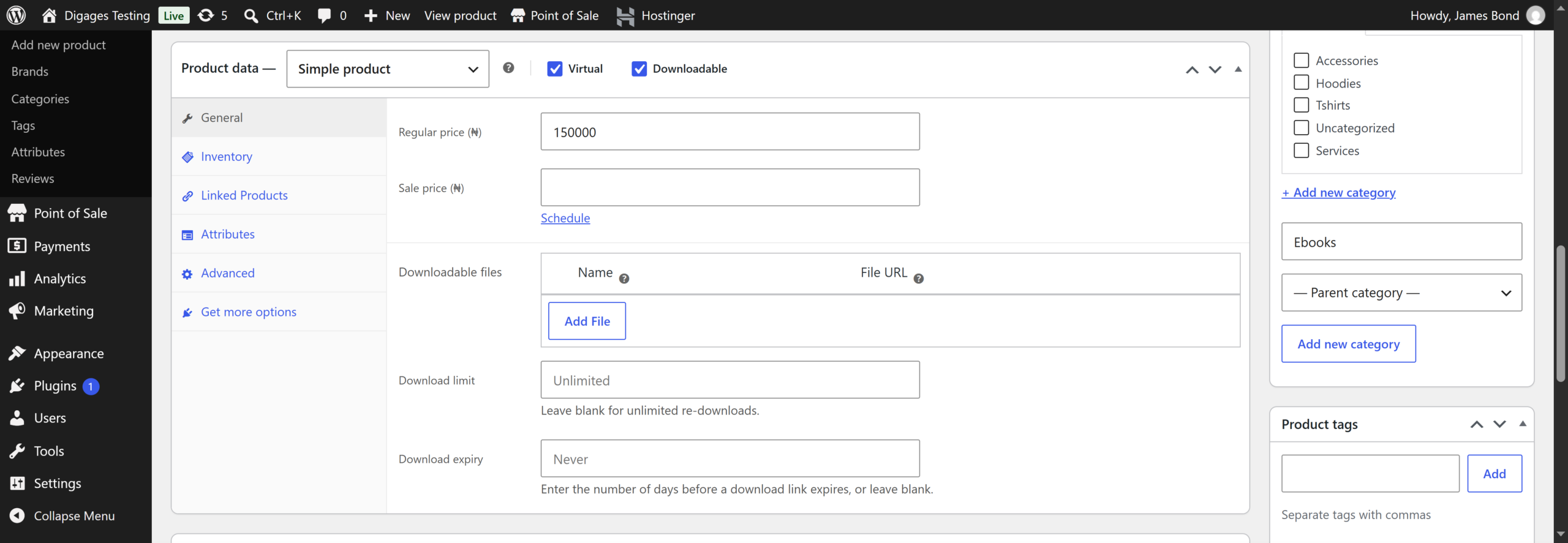
Select Simple Product from the dropdown, then check the boxes for:
- Virtual (since it’s not a physical product)
- Downloadable
Once checked, additional options will appear:
- Click Add File
- Upload your eBook file (e.g., PDF)
- Enter a file name (what customers will see)
Set the Regular Price.

Optional settings:
- Download limit (leave blank for unlimited downloads)
- Download expiry (set number of days if needed)
Step 4: Add Image, Category, and Publish
- Set a Product Image (eBook cover).
- Optionally add images to the Product Gallery.
- Assign a Product Category (e.g., eBooks, Digital Products).
- Click Publish.

Your digital product is now live. After purchase, customers will receive a download link to access the eBook.
Practical Tips for Selling eBooks
- Use a high-quality cover image to increase conversions
- Write a clear, benefit-driven description
- Keep file sizes optimized for faster downloads
- Test the purchase and download flow to ensure it works correctly
- Consider adding preview pages or a sample download